
macOS permissions
TypeSwitcher works locally on your Mac, but macOS requires explicit permission before an app can read typed text and replace selected text. Open System Settings and enable both permissions below. TypeSwitcher uses them only for layout conversion — nothing you type ever leaves your Mac (see the Privacy Policy).
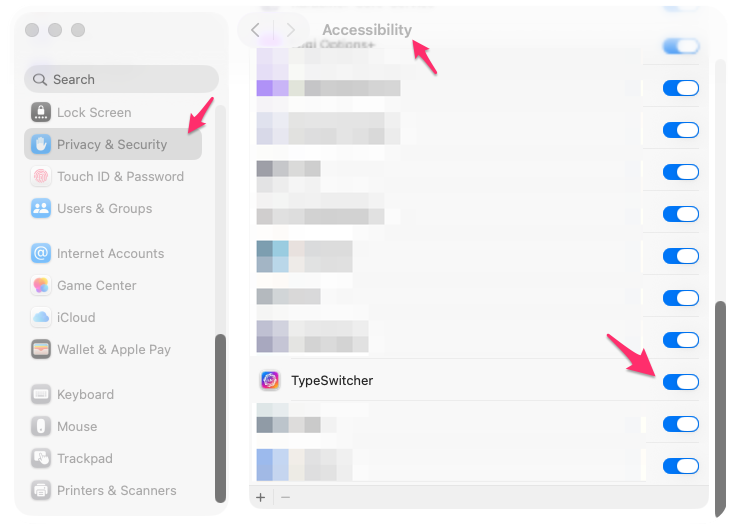
Accessibility
Go to Settings > Privacy & Security > Accessibility and turn on TypeSwitcher.
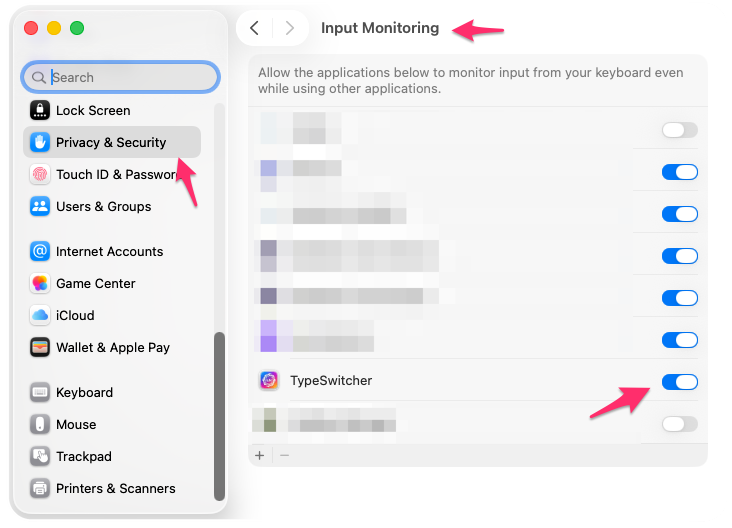
Input Monitoring
Go to Settings > Privacy & Security > Input Monitoring and turn on TypeSwitcher.
After enabling
Once both permissions are enabled, the TypeSwitcher icon appears in the macOS menu bar. Open it from there to enable the app, pause it, or change settings.
Revoking access
You can review or revoke both permissions at any time in System Settings > Privacy & Security. TypeSwitcher handles revoked permissions gracefully — it simply pauses correction until access is restored.