Docs
Install on macOS
TypeSwitcher for macOS ships as a signed and notarized .dmg disk image and runs on Apple Silicon and Intel Macs. Download the latest version (v1.1.57).
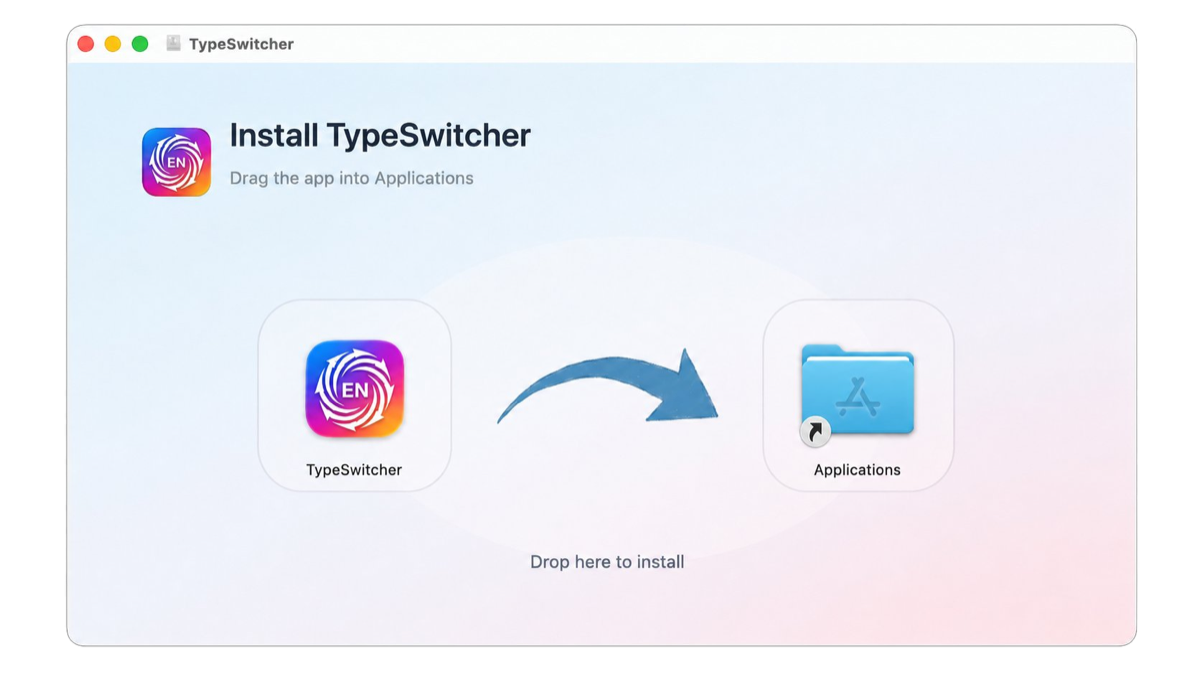
1. Open the installer
Double-click the downloaded .dmg file.
2. Move the app
Drag the TypeSwitcher icon to the Applications folder.
3. Start TypeSwitcher
Open TypeSwitcher from Applications. On first launch it will guide you through granting the permissions macOS requires — see macOS permissions.
4. Find it in the menu bar
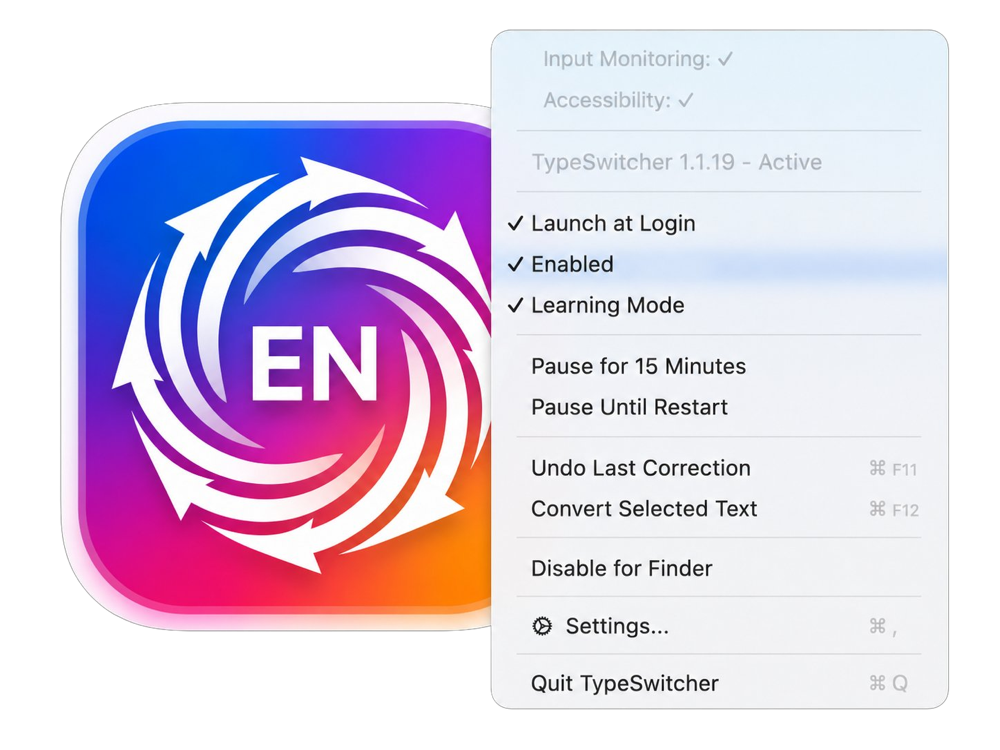
After the permissions are enabled, the TypeSwitcher icon appears in the macOS menu bar. Open it from there to enable the app, pause it, or change settings.
Check that conversion works
- Open TextEdit, Notes, or any app where you can type and select text.
- Switch to another keyboard layout and type
hello. On a Russian layout this usually appears asруддщ. For Ukrainian, tryПривітwhile the English layout is active; it usually appears asGhbdsn. - Select the mistyped text and choose Convert Selected Text from the TypeSwitcher menu. The result should be
hello.
If the text converts correctly, TypeSwitcher is installed and configured.